
- Training
- Service
- Promotion
- Schedule
- Testing Center
- News
- Contact
7/26/2022


Manipulating files and folders is a fundamental part of most business processes. Power Automate for desktop provides the files and folders actions to help accomplish this task.
In this module, you will:

The following screenshot shows the numerous examples of special folders whose paths can be retrieved.

Create new folders with the Create folder action. Specify the directory where you want to create the folder and the name of the new folder. For example, the Create folder action can reference the output of the Get special folder action.
The following screenshot shows that the previously retrieved special folder is used as the directory for the new folder, which will be named Files.
 The output of this action is a Folder type variable and contains the attributes that are shown in the following table.
|
Property |
Variable Type |
|||
| .Creation Time | Datetime | |||
| .Exists | Boolean value | |||
| .Full Name | Text value | |||
| .Is Empty | Boolean value | |||
| .Is Hidden | Boolean value | |||
| .Last Modified | Datetime | |||
| .Name | Text value | |||
| .Root Path | Folder | |||
| .Files Count | Numeric value | |||
| .Folders Count | Numeric value | |||
| .Parent | Folder |
To copy a folder to a different directory, use the Copy folder action. This action requires you to fill in the Copy folder and Destination folder fields. As shown in the following screenshot, information in these fields can be provided as paths or as folder-type variables.
If a folder already exists with the same name as the one that you want to copy into the Destination folder field, use the If folder exists drop-down menu to set this option to Overwrite to overwrite the folder in the destination, or you can set it to Do nothing.

Similarly, you can copy a folder to a new destination with the Move folder action. Note that when you move rather than copy a folder, it is deleted from its original location. The folder to move and the destination folder are required inputs.
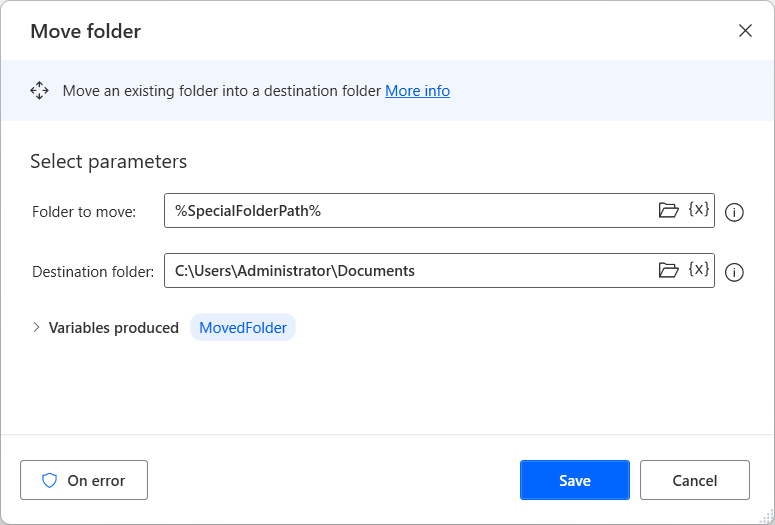
To rename a folder, use the Rename folder action, and then specify a folder to rename and a new name.

Delete folders by using the Delete folder action. Otherwise, if you want to delete only the contents of the folder rather than the actual folder, use the Empty folder action. Specify the folder by file path or variable.
To get a list of a folder's contents, use the Get subfolders in folder action. This action will retrieve a list of folders inside the specified (parent) folder and will provide as output a list of folders. Additionally, to filter the output by folder name, configure a Folder filter. Include additional layers of subfolders by selecting the Include subfolders check box.
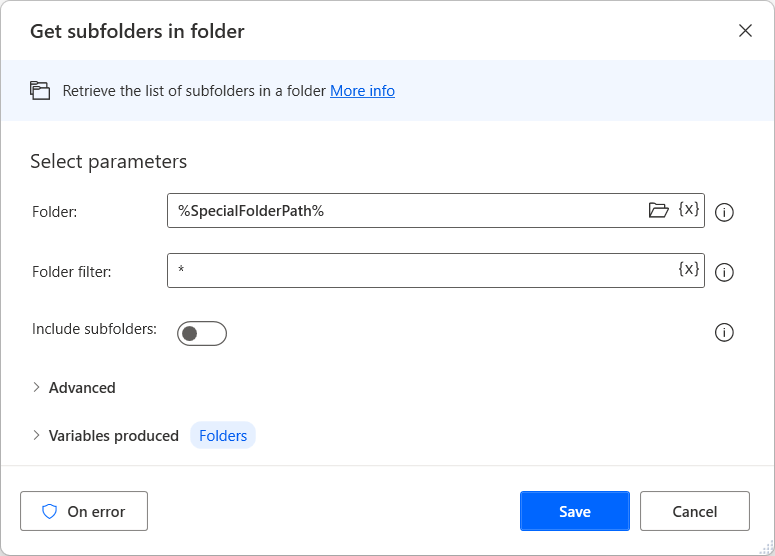
Set the action to fail if access is denied to any of the subfolders, or you can sort the output sequentially by three fields in the Advanced section. Selecting the Descending check box will sort the output by the selected field in descending order, as opposed to ascending order if the check box is cleared.

Working with files is similar to working with folders. File and folder operations are similar, and the file-related actions require the file or folder to be specified by providing its path.
To get a list of all files in a specified folder, you can use the Get files in folder action. This action works similarly to the Get subfolders in folder action. The path of the folder is a required input and you can specify it as a variable.
Optionally, you can filter files by using the File filter action. Add keywords, along with the asterisk (*) wildcard character, and separate multiple terms with a semicolon (;). You can look in subfolders by selecting the Include subfolders action.

Similar to the Get subfolders in folder action, you can sort the output and set the action to Fail upon denied access to any subfolder in the Advanced section.

To copy or move files, use the Copy file(s) and Move file(s) actions, respectively. These actions take as input a file, or a list of files, and a destination folder. Set If file exists to Overwrite or Do nothing.
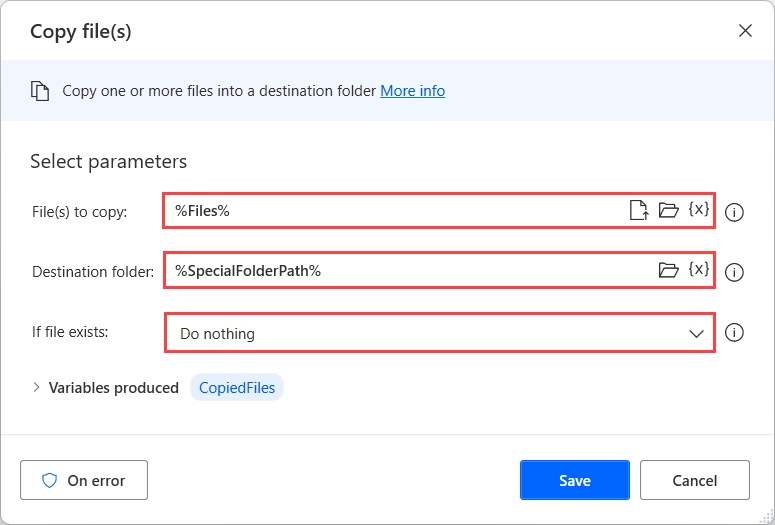
To delete files, use the Delete file(s) action, which requires the file or list of files as input.
Rename files in a batch for grouping or organization purposes to ensure that they correctly adhere to a certain naming convention by using the Rename files action. This action contains a variety of ways to dynamically alter a file name. As with the previous actions, the required input is a file or list of files. Additional requirements depend on the option that is selected in the Rename scheme drop-down menu.
For example, the Set new name option requires a new name with the option to remove the extension. The Replace text option requires the text that you want to replace and the text to replace it with.
Changing the extension requires that you specify the new extension. If a file with the new name that you have specified exists, you can choose to overwrite it or to perform no action at all.

To perform file-related operations based on the contents of a file, use the Read text from file action. This action stores text from a .txt file in a variable. The required input is a .txt file, and the file content is stored as a single text value or as a list. Select a list, and each line of text in the file will be an item in the list. Also, you can select the encoding of the input file from a list of options.

Use the Write text to file action to add text to a file or to create a new file with the specified text. This action requires the path for the text file and the text to append. You can also select to append a new line at the end of the written text. If the file exists, you can select to either overwrite the existing content or append it to the file.

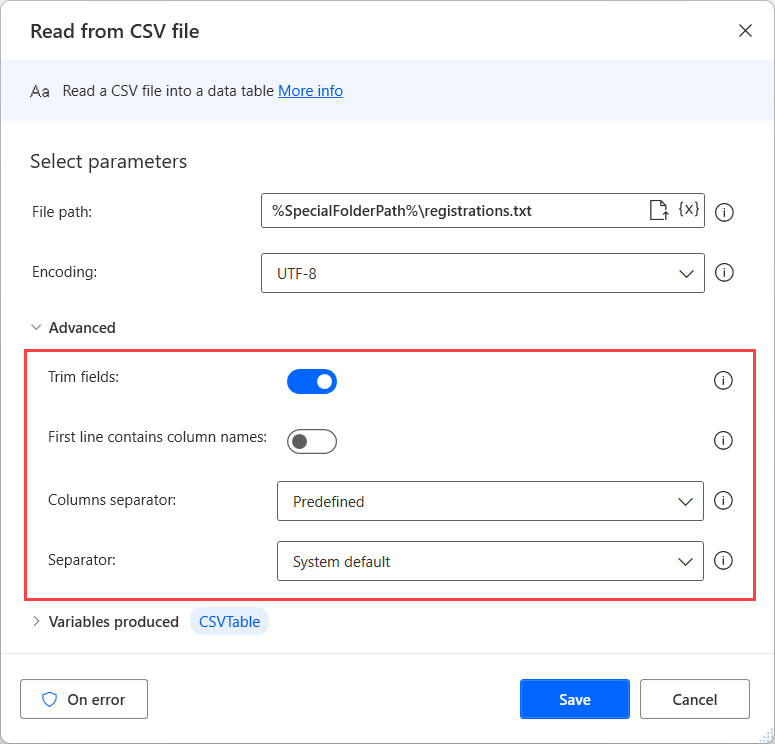
To read data from a comma-separated value (.csv) spreadsheet file, use the Read from CSV file action. The action requires the path to the .csv file and the encoding of the file. The output is a DataTable type variable with the contents of the .csv file.
The Advanced section includes multiple options for handling the data in the .csv file. Trim (remove whitespaces from the beginning and end) the value in each cell to ensure consistency of data and remove redundancy. If the First line contains column names check box is selected, the first line will not be stored in the output variable. Additionally, you can change the columns separator if a different symbol is used in the file.
Write any DataRow or DataTable type variable to a .csv file with the Write to CSV file action. Specifying the path of the file and the variable to write are required inputs.
You can specify whether the first row of data includes column names and should not be written to the file. If a file with the same name exists, select to either overwrite or append the data, and then set the columns separator. These settings can be found in the Advanced section.

The Get filepath part action requires a file path as input and breaks it down into multiple components, which are all stored as variables.

Source:: https://docs.microsoft.com

12/11/2025


